Email Settings Administration
Overview
KrakenHashes supports email functionality through multiple providers: SendGrid, Mailgun, and SMTP. This document covers the configuration and management of email settings through the admin interface.
Provider Configuration
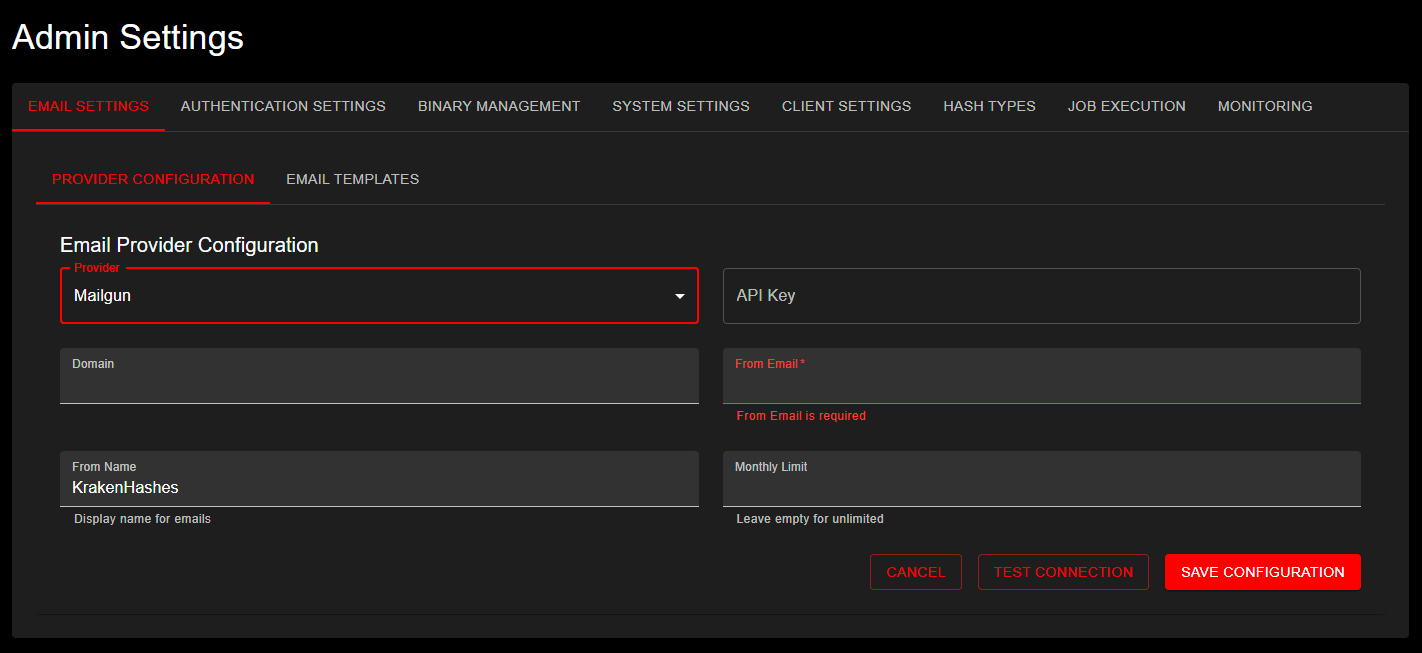 Admin Settings Email Configuration page showing Mailgun provider setup with API Key, Domain, From Name, From Email, and Monthly Limit fields
SendGrid
To configure SendGrid as your email provider:
- Select "SendGrid" from the Provider dropdown
- Configure the following fields:
- API Key: Your SendGrid API key with email sending permissions
- From Email: The verified sender email address
- From Name: Display name for the sender (defaults to "KrakenHashes")
- Monthly Limit: (Optional) Set a monthly email sending limit
Mailgun
To configure Mailgun as your email provider:
- Select "Mailgun" from the Provider dropdown
- Configure the following fields:
- API Key: Your Mailgun API key
- Domain: Your verified Mailgun domain
- From Email: The verified sender email address
- From Name: Display name for the sender (defaults to "KrakenHashes")
- Monthly Limit: (Optional) Set a monthly email sending limit
SMTP
To configure a custom SMTP server as your email provider:
- Select "SMTP" from the Provider dropdown
- Configure the following fields:
- Host: Your SMTP server hostname (e.g.,
smtp.gmail.com,smtp.office365.com) - Port: SMTP server port (auto-selected based on encryption if not specified)
- Username: SMTP authentication username
- Password: SMTP authentication password
- From Email: The sender email address
- From Name: Display name for the sender (defaults to "KrakenHashes")
- Encryption: Select encryption mode:
- None: Plain SMTP without encryption (port 25, not recommended for production)
- STARTTLS: Start with plain connection and upgrade to TLS (port 587, recommended)
- TLS/SSL: Direct TLS connection (port 465, legacy but widely supported)
- Skip TLS Verify: ⚠️ Only enable for self-signed certificates (security risk)
SMTP Configuration Notes
Default Ports: - None (no encryption): Port 25 - STARTTLS: Port 587 (recommended for most providers) - TLS/SSL: Port 465 (implicit TLS)
Connection Timeouts: - All SMTP connections have a 30-second timeout to prevent indefinite hanging - If connection fails, check firewall rules and server availability
Password Management: - When updating existing SMTP configuration, you can leave the password field empty to keep the current password - The password is stored securely and displayed as [REDACTED] in the UI - Only enter a password when creating new configuration or changing the existing password
Supported SMTP Providers: - Gmail (requires App Password if 2FA enabled) - Office 365 / Outlook.com - Custom mail servers - Self-hosted SMTP servers
Security Warning: - The "Skip TLS Verify" option should only be used for self-signed certificates in trusted environments - Always use STARTTLS or TLS/SSL encryption in production - Never use "None" encryption for production email
Monthly Limit
The monthly limit field is optional: - Leave empty for unlimited emails - Set a numeric value to limit monthly email sending - Helps prevent unexpected costs from email service providers
Testing and Saving Configuration
Configuration Options
When saving email provider settings, you have three options:
- Cancel: Discard changes and return to previous settings
- Save Configuration: Save settings without testing
- Test and Save: Test the configuration before saving
Testing Process
When using "Test and Save":
- Enter a test email address
- System sends a test email to verify configuration
- If successful:
- Configuration is saved
- Confirmation message displayed
- If failed:
- Error message displayed
- Configuration not saved
- Troubleshooting information provided
Email Templates
Email templates are managed separately from provider configuration.
Best Practices
- Provider Selection
- Choose based on your volume needs
- Consider provider-specific features
-
Review pricing structures
-
Configuration Testing
- Always test configuration before deployment
- Verify emails are received
-
Check spam folder during testing
-
Monthly Limits
- Set based on expected usage
- Include buffer for unexpected spikes
-
Monitor usage through provider dashboards
-
Security Considerations
- Store API keys securely
- Use dedicated sending domains
- Regularly rotate API keys
- Monitor for unusual activity
Troubleshooting
Common Issues
- Emails Not Sending
- Verify API key permissions
- Check monthly limit hasn't been reached
- Confirm sender email is verified
-
Review provider dashboard for blocks
-
Test Emails Failing
- Verify API key is correct (SendGrid, Mailgun)
- Verify SMTP credentials are correct (SMTP)
- Check domain configuration (Mailgun)
- Check port and encryption settings (SMTP)
- Ensure test email address is valid
-
Review error messages in admin interface
-
SMTP Connection Issues
- Verify hostname is correct and reachable
- Check if port is blocked by firewall
- Confirm encryption mode matches server requirements
- For Gmail: Use App Password, not account password
- For Office 365: Ensure SMTP AUTH is enabled
-
Connection timeout (30 seconds) may indicate network issues
-
Template Issues
- Verify template syntax
- Check variable names match expected format
- Preview templates before saving
- Test with various data scenarios